PokéBonk how to play: follow the screens
Open pokebonk.com, choose Guest, pick one partner and press Play → Start. In a run, move with WASD, let attacks fire automatically, and press P to pause.
The eight-step first-run route
-
Open the official page and read the welcome panel
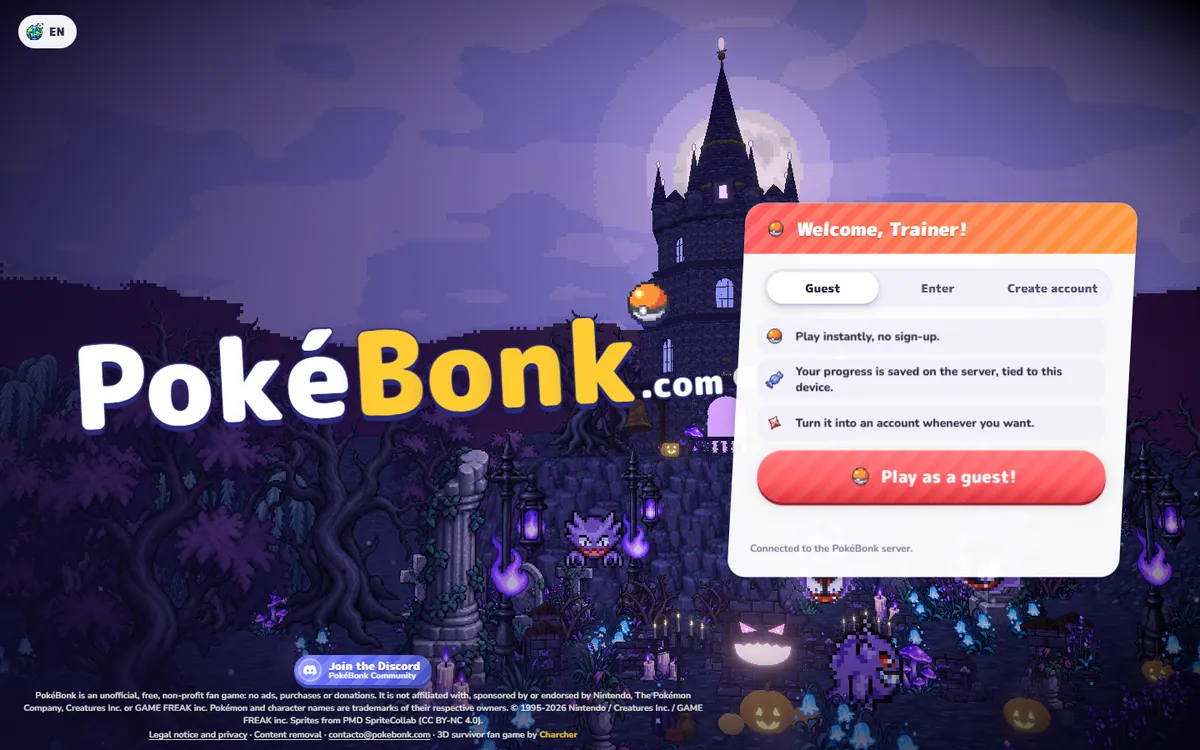
Step 1 — the official welcome panel and version pill — own screenshot, 2 Nov 2026. Game v0.8.89. Go to pokebonk.com/?lang=en. The page should show the PokéBonk logo, a version pill and a “Welcome, Trainer!” panel. The EN button at top-left changes language. If the page never leaves a loading screen, check JavaScript, WebGL and your connection before changing any save settings.
-
Choose Guest, then “Play as a guest”
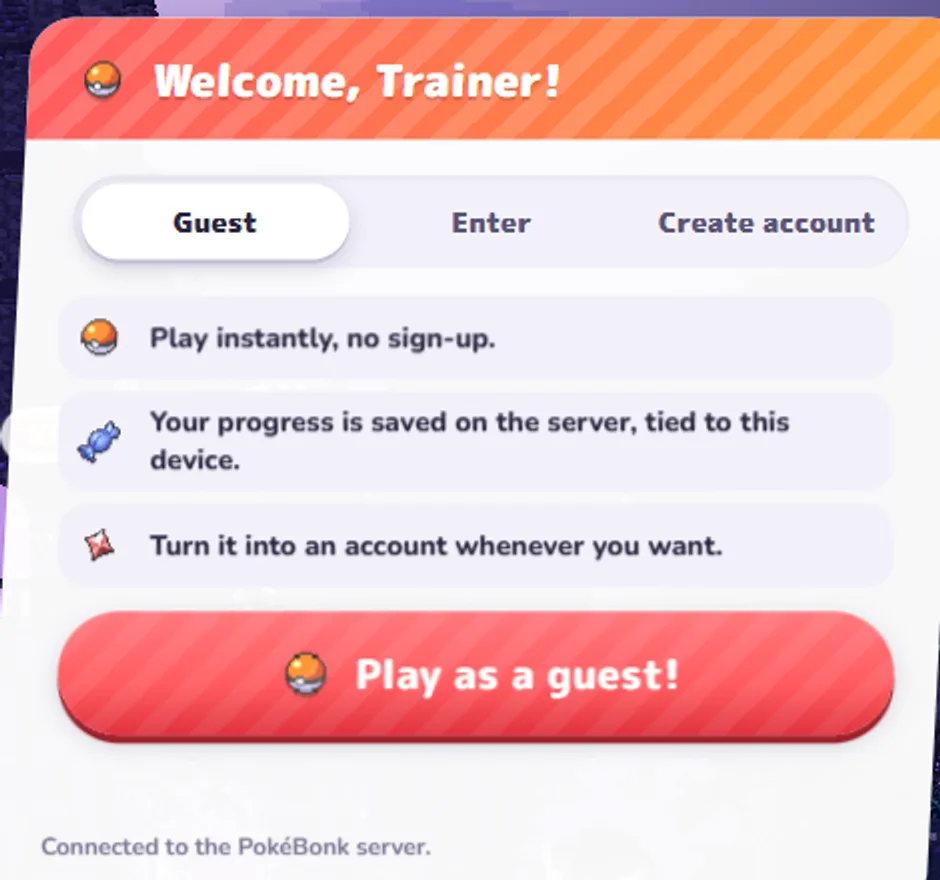
Step 2 — Guest is the no-sign-up route; progress is described as device-linked — own screenshot, 2 Nov 2026. Game v0.8.89. Guest is highlighted by default. The panel explains that progress is stored on the server, tied to this device, and can become an account later. Press the red “Play as a guest!” button. A human-check step can appear; in our test it cleared after a few seconds.
-
Choose a partner and confirm the permanent warning
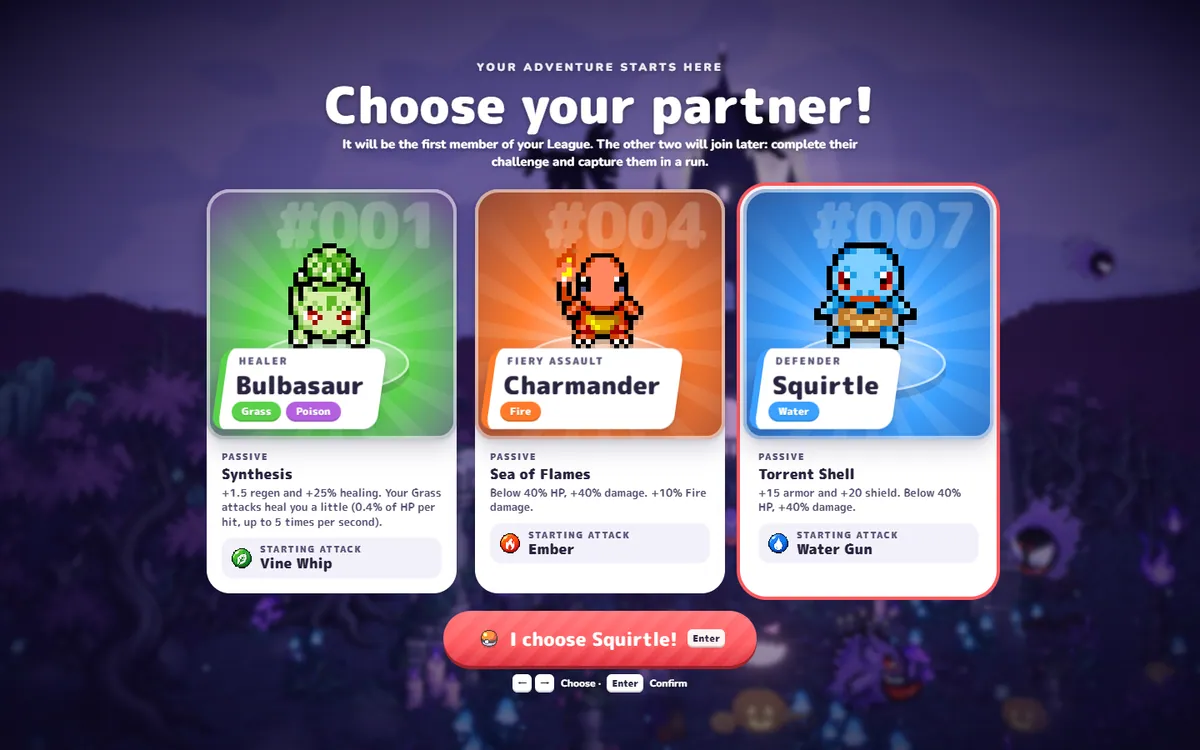
Step 3 — partner selection, with the passive and starting attack on each card — own screenshot, 2 Nov 2026. Game v0.8.89. The next screen is “Choose your partner!”. Click a card or use ←/→ and Enter. The bottom button changes to “I choose [name]!”. Pressing it opens a second warning: this is your starting partner and you cannot change it later. The other two can join later through a challenge and capture, according to the screen.
-
Learn the main menu without opening everything
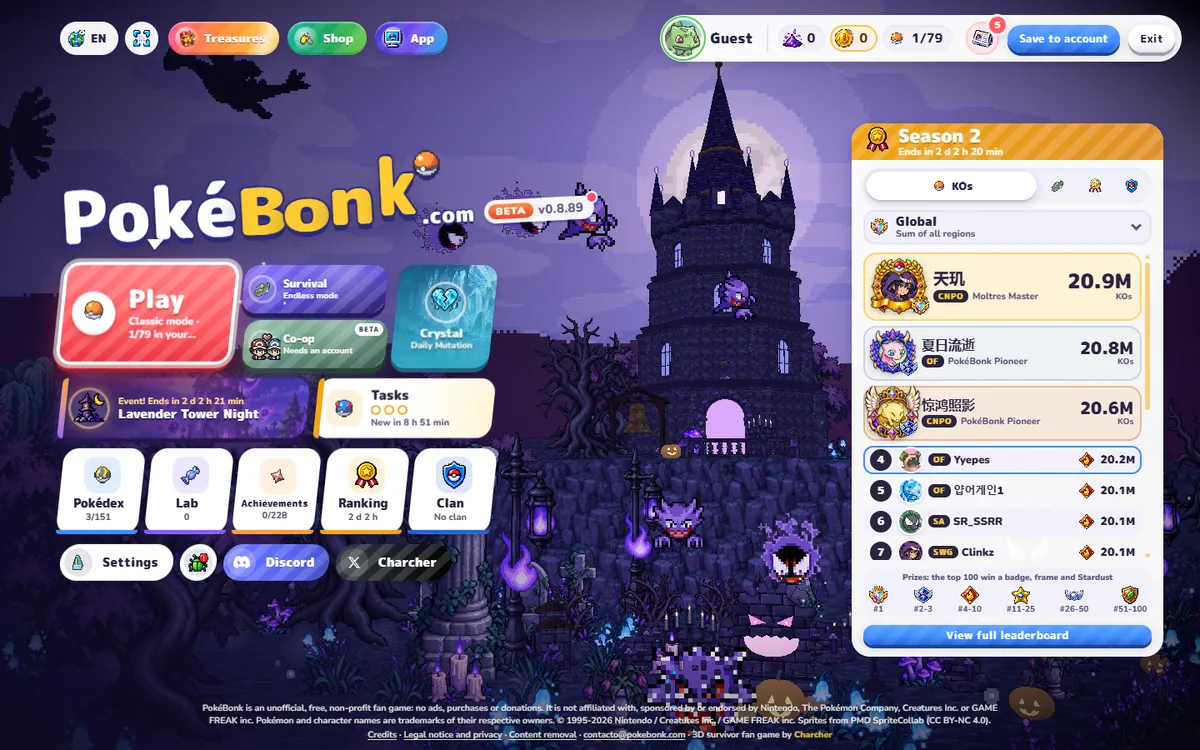
Step 4 — the hub you see after confirming a partner — own screenshot, 2 Nov 2026. Game v0.8.89. After the partner is confirmed you land on the hub. The large Play tile starts Classic mode. Survival starts Endless mode. Co-op is marked BETA and needs an account. Crystal is the Daily Mutation, and the seasonal tile opens the current event. Tasks, Pokédex, Lab, Achievements, Ranking, Clan and Settings sit below.
-
Open Play, then choose a region and difficulty
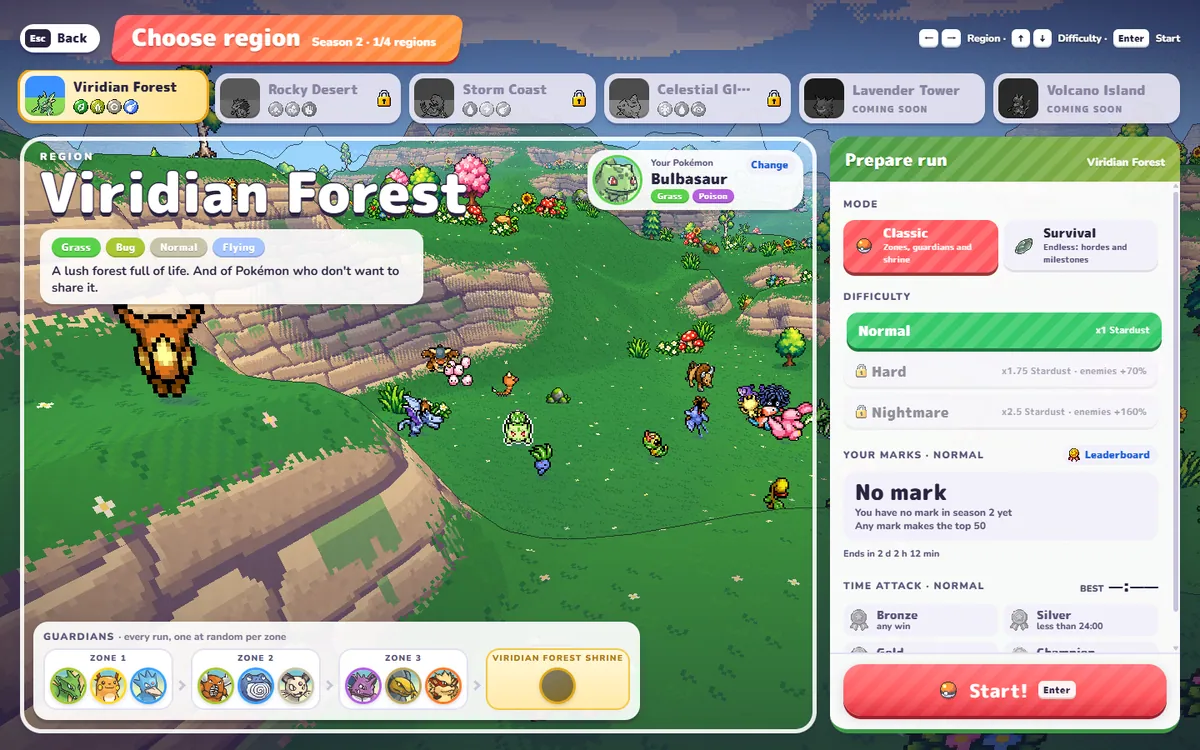
Step 5 — region, mode, difficulty and the Start button — own screenshot, 2 Nov 2026. Game v0.8.89. Play opens a partner detail page with “I choose you!” at the bottom. That opens the region selector. In our build Viridian Forest was selected, with three zones and a shrine listed. Region and difficulty are separate choices on the right; press Start when both are set.
-
Read the in-run HUD, then move
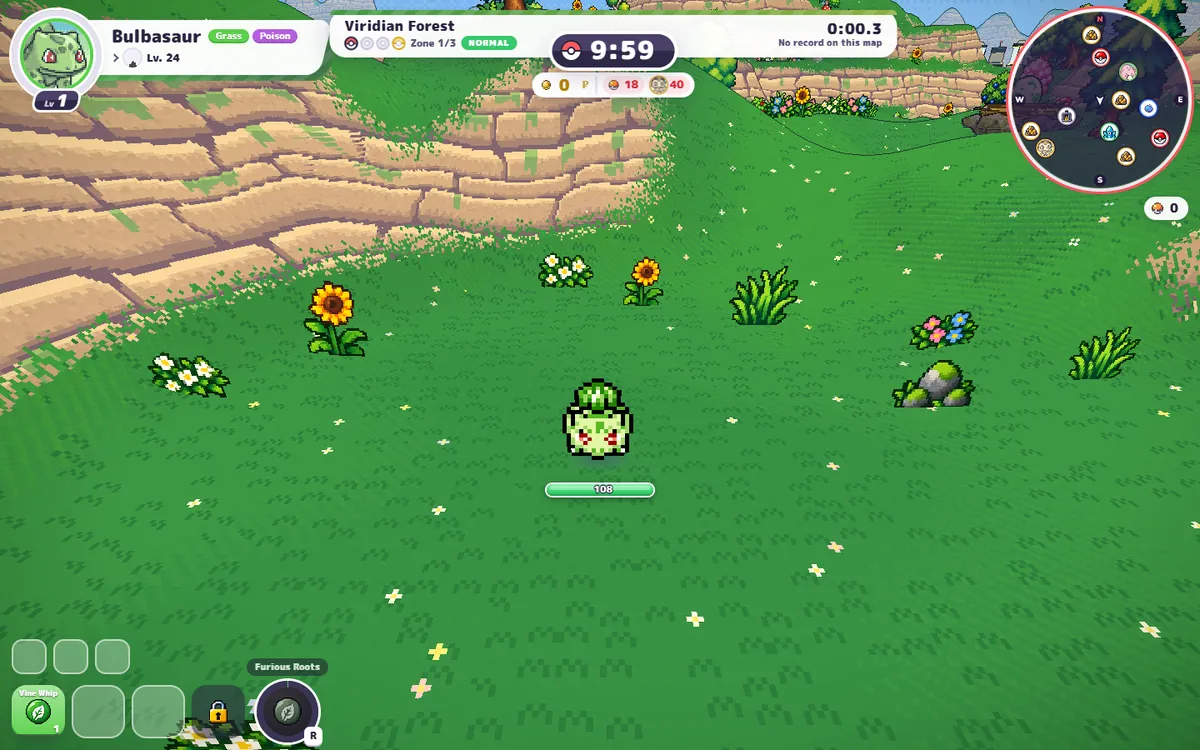
Step 6 — the live HUD in Viridian Forest — own screenshot, 2 Nov 2026. Game v0.8.89. 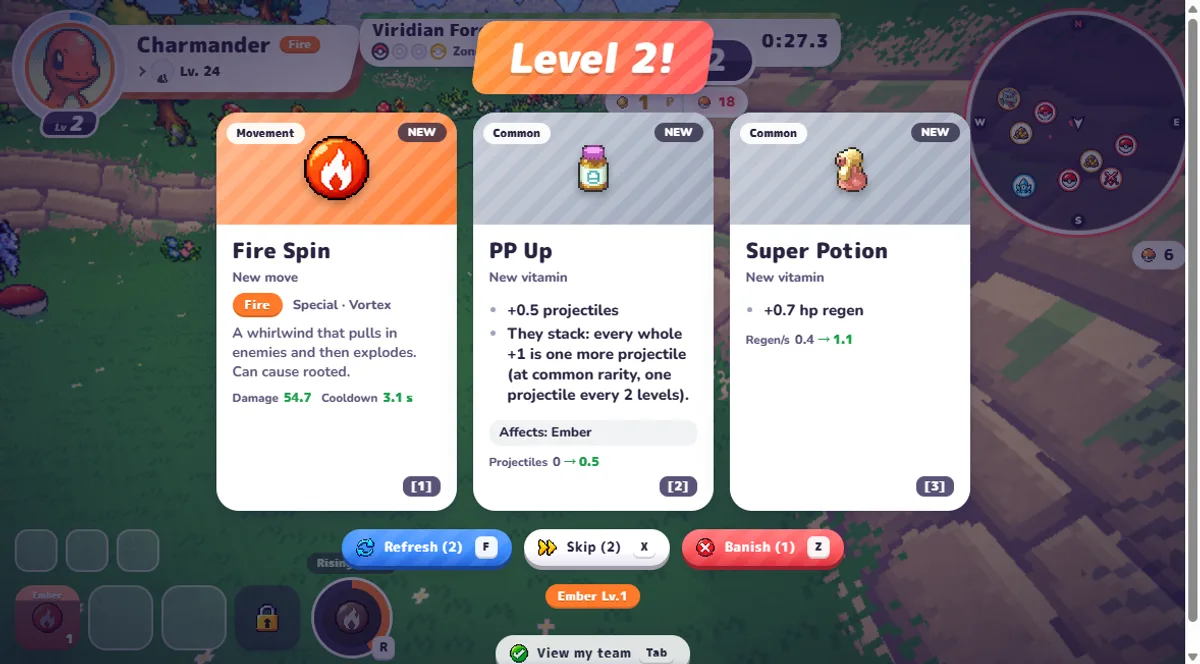
Inside step 6 — a real level-up offers a move, a vitamin or a heal; the numbers change before you pick — own screenshot, 2 Nov 2026. Game v0.8.89. The top-left card is your partner, level and HP. Top-centre is the zone, timer, difficulty and run counters. Top-right is the minimap. Bottom-left holds move slots; bottom-centre is the Ultimate. The first run starts with one move, three locked slots and a short “Time to survive!” banner. Your attack fires automatically, so keep moving to avoid being surrounded. Collect the XP enemies drop; on a level-up, read what each offered upgrade changes before choosing. Settings lists F for Refresh, X for Skip and Z for Banish on the level-up screen, but those functions need the matching uses to be available.
-
Pause and read your actual build
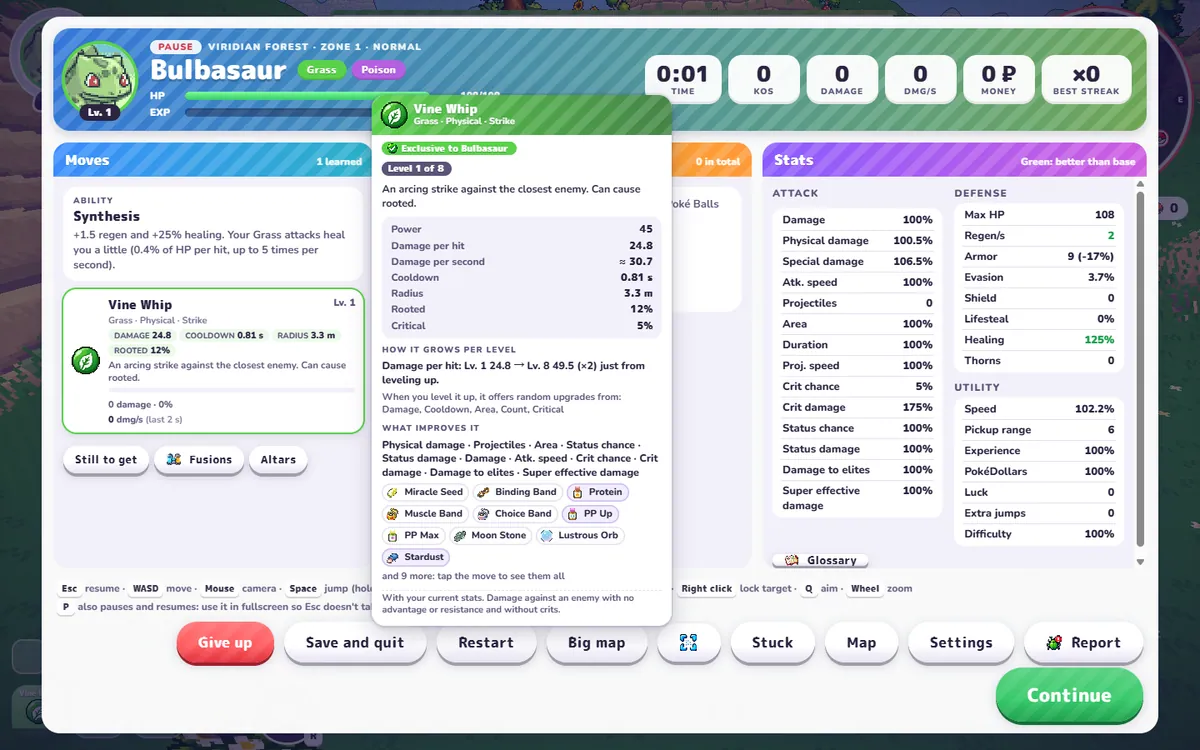
Step 7 — P opens this pause panel; it is also a build readout — own screenshot, 2 Nov 2026. Game v0.8.89. Press P to pause or resume. The pause panel shows time, kills, damage, money, your moves and their numbers, altars and items, and a long stat sheet. It also has Continue, Big map, Settings, Report, Restart, Save and quit, Give up, and Stuck buttons. If you are in fullscreen, prefer P; Esc can also open this screen but may leave fullscreen. The item catalogue lists what every pickup actually does.
-
Set your controls before the second run
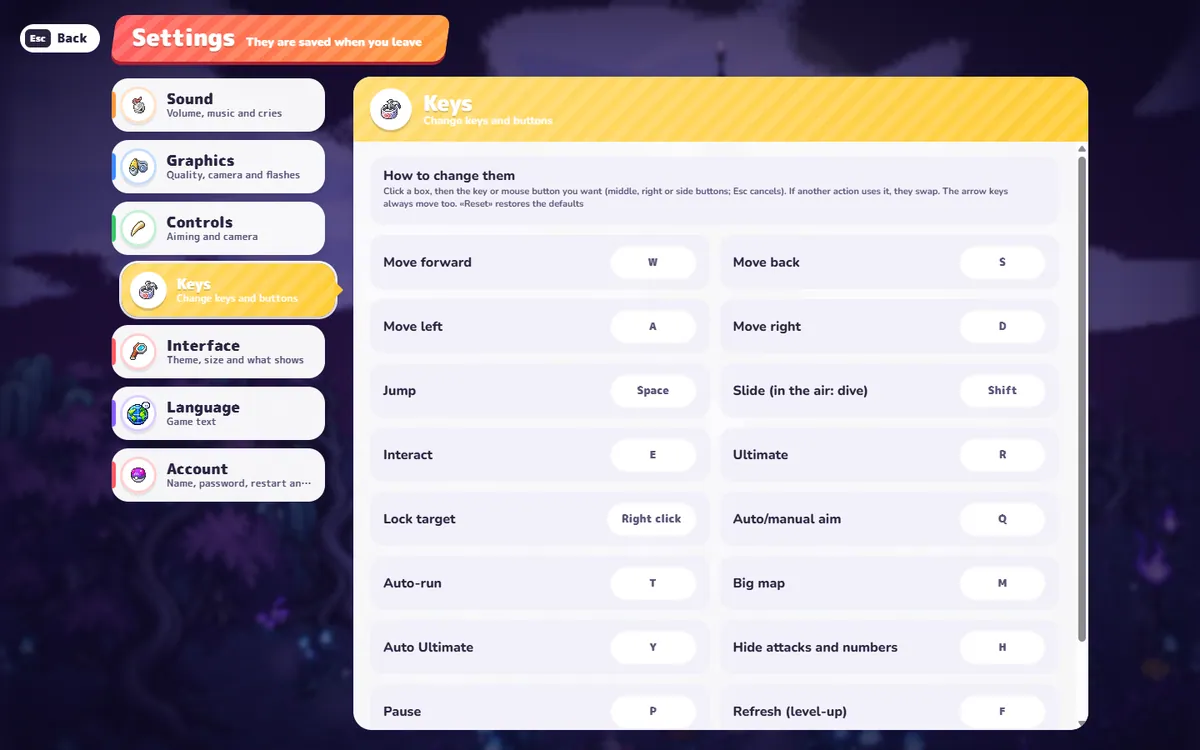
Step 8 — the exact default key list, read from Settings → Keys — own screenshot, 2 Nov 2026. Game v0.8.89. Open Settings → Keys. Click a binding box, then the key or mouse button you want. The defaults are WASD to move, Space to jump, Shift to slide, E to interact, R for the Ultimate, Q to switch auto/manual aim, M for the big map, P to pause and the mouse wheel to zoom. Settings → Controls handles touch controls, aim mode, sensitivity and camera distance.
Before you start: what you need
Menu path and controls checked in the live browser build on 2–3 November 2026. This is the route we actually saw; it can change during beta.
You need a browser with JavaScript and WebGL enabled, plus a connection to the official site. No account is needed to test the game, and no download is required for the browser version. The welcome screen offers Guest, Enter and Create account. We used Guest for the captures on this page.
The version pill in the top-left of the menu showed BETA v0.8.89. Read it before following any guide: the game is in beta, and menu labels and prices change between builds. If your build is newer, trust your screen over this page.
What each part of the screen means
| Area | What it shows | What to do with it |
|---|---|---|
| Top-left | Partner, types, level and HP bar. | Watch HP first; the bar is your survival clock. |
| Top-centre | Zone, run timer, difficulty, PokéDollars and pickup counters. | Use the timer to judge a run; the zone tells you how far you are. |
| Top-right | Minimap with markers; a small counter sits below it. | Check nearby points of interest and enemy direction. |
| Bottom-left | Move slots. Locked slots are visible from the first run. | One move is active at the start; read new moves as you earn them. |
| Bottom-centre | Ultimate button and charge ring. | Press R when charged; do not save it for a perfect moment you never reach. |
| Floating pickups | XP and PokéDollars dropped by enemies. | Move through them; range upgrades affect collection. |
First-run mistake we made: we stood still to “let the auto-attack work”. The Bulbasaur run ended at 0:43 with 0 kills and 36 hits taken. The attack is automatic, but avoiding damage is still your job. Move through the crowd instead of parking in it.
How to pause, quit and come back
P pauses and resumes. The pause panel has Save and quit for leaving a run and Give up for ending it. We tested Pause and the panel, but we did not test resuming a saved run across devices or days, so we do not promise that route. If a run matters, use the visible Save and quit option rather than closing the tab.
What “winning” looks like
The Classic region screen lists three zones and a shrine, so a run is more than a single wave. We have not completed a region, and we have not tested Survival or co-op. Do not treat a cleared first zone as a finished run. The pause panel’s time, kills and damage numbers are the honest measures of how far you got.
Questions people also ask
What button pauses PokéBonk?
P pauses and resumes a run. Esc also opens the pause screen, but the game warns that Esc can leave fullscreen, so P is the cleaner key while playing. Both are listed in Settings → Keys.
Why can I only use one move at the start?
A new partner begins with one equipped move and three locked move slots in the bottom-left HUD. Moves and slot unlocks come from levelling and account progression; the pause screen shows what you currently have.
Do I have to create an account to play?
No. The welcome screen has a Guest option, and our first run started without an account. The panel says guest progress is saved on the server but tied to this device, with an option to turn it into an account later.
What should I do in the first minute?
Move, keep away from the edge of a crowd, and let your automatic attack work. Watch the run timer at top-centre, the zone counter beside it and your HP at top-left. Collect XP, then read the level-up choices instead of picking the first card.